 Help Center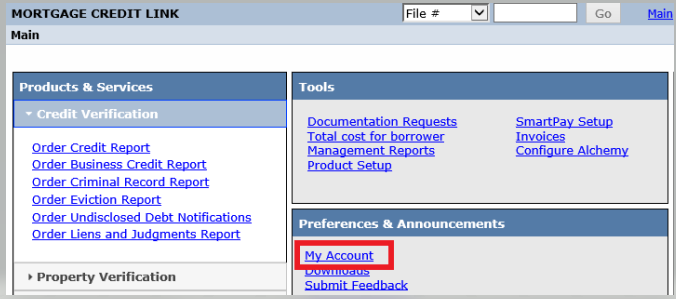
1. Clients can access the installation of the certificate from My Account by selecting "Install Client Certificate".
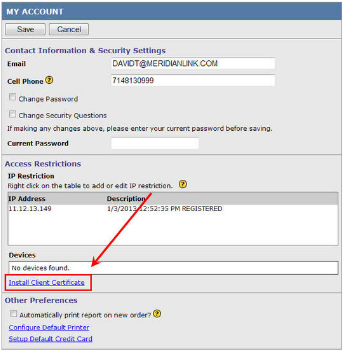
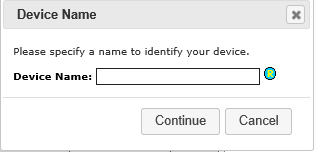
2. You will need to specify a name for your machine. This name will be used to identify which certificate is tied to your computer.
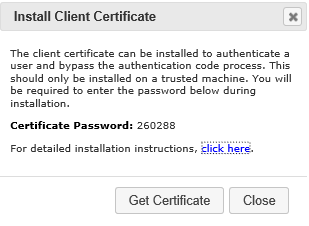
3. Press the "Get Certificate" button to download the certificate. Either make note of the password or leave this window open so that you can refer to it during the installation process.
4. The browser will prompt to open or save the certificate once downloaded. Choose open to begin the installation process.

5. Click Next on the initial prompt to install for the current user of the workstation.
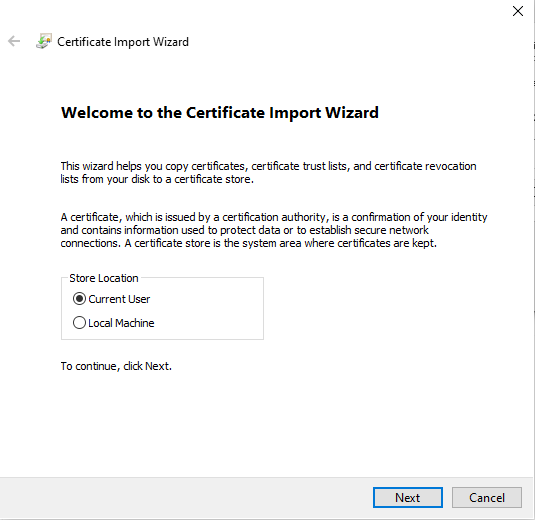
6. Click Next again to accept the default file name.
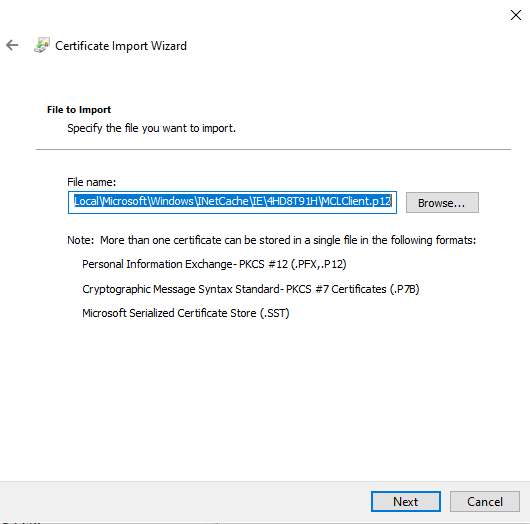
7. Enter the password from step 3 and click Next to continue.
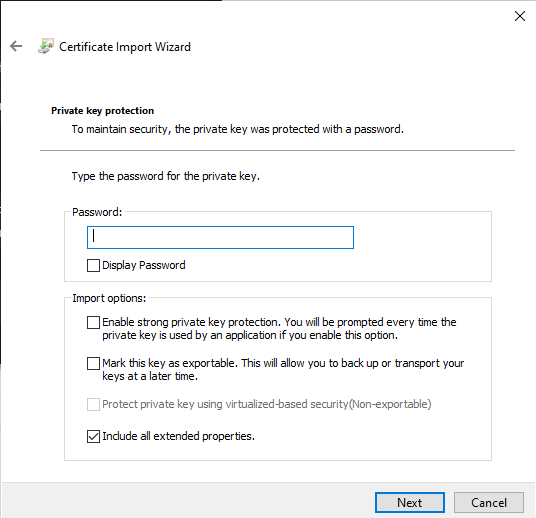
8. Click Next to accept the default storage
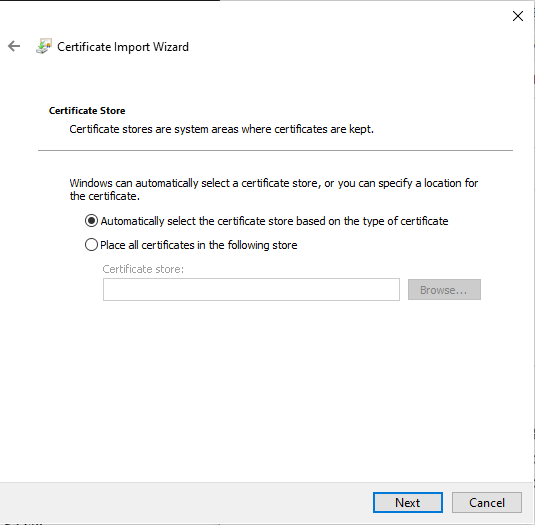
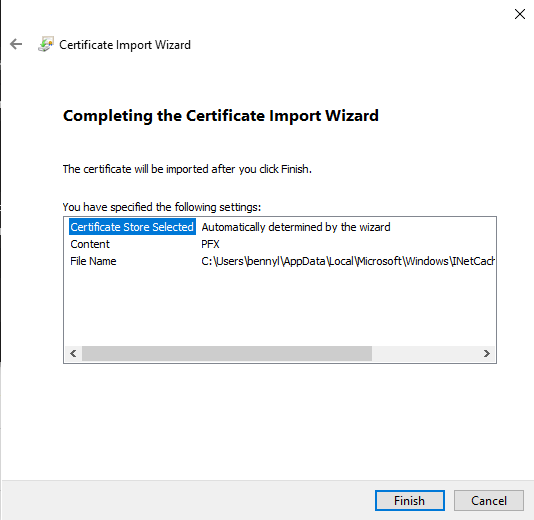
9. Click Finish to complete the installation
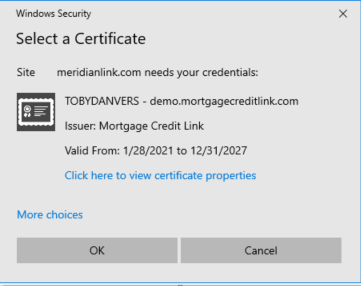
10. Once the Digital Certificate has been installed, we suggest restarting the browser by closing all open windows and starting a new session. Once you get to the login screen again in a new browser session, you will get a prompt to select the certificate, then hit ok to continue.
For more information please contact support@kcbcredit.com