 Help Center
- You can reach the order page by selecting Employment/Income/Asset Verification from the main page and then clicking Verification of Employment.

- Fill out the following consumer information on the order screen:
- Fields designated with the green letter R are required fields. The rest of the consumer information is optional, but we recommend to fill out as much information as possible.
- First name
- Last name
- SSN
- Employer Name. This field will only be required when select the Specific Employer option.
- Select appropriate Record Filter type. This controls the area of the records that are searched and what is applied. The following options are available.
- Current Employer(s) - VOE will only search for current employers.
- Previous Employer(s) - VOE will only search for previous employers.
- Both - Current & Previous - VOE will search for both current and previous employers.
- Note that if TWN returns current and previous employers, two charges will be added to the VOE as TWN will bill for each category separately.
- Specific Employer - VOE will only search for a specific employer. This option should only be used in the following scenarios:
- The consumer is a Rhode Island resident.
- The consumer is an employee of one of the following employers (which will also require an Employee ID): State of California, Tx Dept of Criminal Justice Human Resources HQ Employee Svs, Oregon State University.
- There are multiple names associated with the consumer's SSN.
- Select appropriate Type of Verification. This controls which employment type is going to be verified. The following options are available.
- Employment - Check against typical employment records
- Employment plus Income - Checks against typical employment records as well as reported income
- Self Employed - Checks to see if a borrower was self employed
- Re-Verify - Repulls previous information to ensure nothing has changed during the processing period
- Check the checkbox next to the Pay by credit card if you would like to pay the credit report with a credit card. If you are required to pay by credit card, this box will automatically be checked and cannot be unchecked.
- Click on the Order button to place the VOE order. If you get any warnings, please correct them and try to order again. You may get a warning screen indicating that a report already exists for the consumer. Please see the Duplicate Detection section for more details.
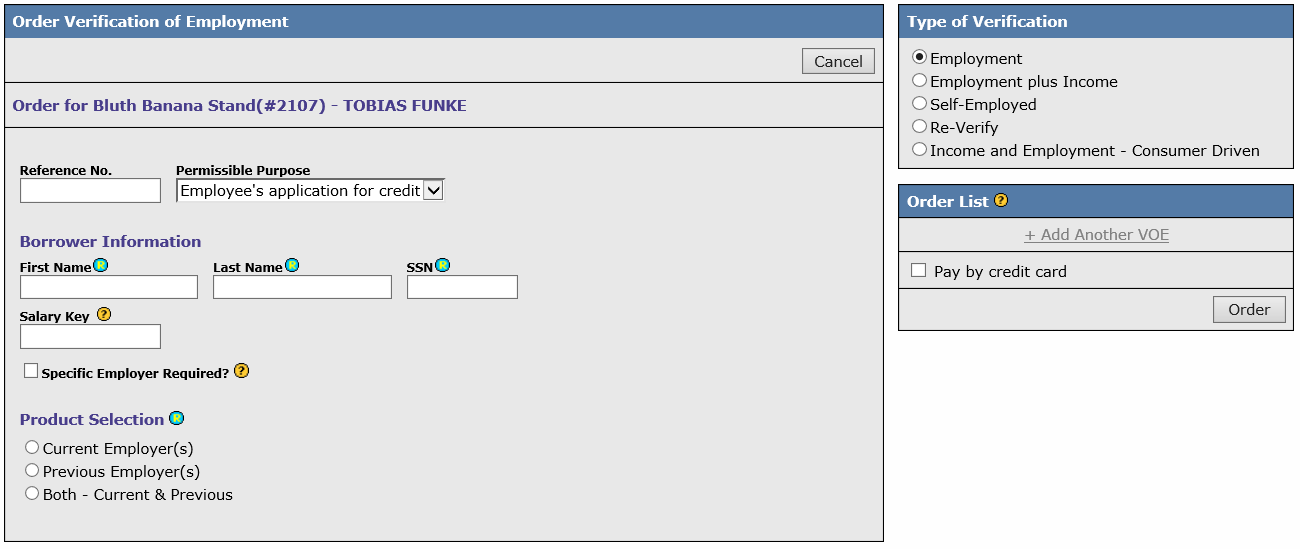
Additional Fields
Salary Key
There are specific employers that do not allow access to employment/ income information without a salary key.
For a list of employers that do not allow access to income/ employment information without a salary key, please select the help icon next to the field title.
Other Verification of Employment Features
Placing multiple VOE orders
Often users will want to order more than a single VOE at one time. Below are the steps on how to place order several at a time.
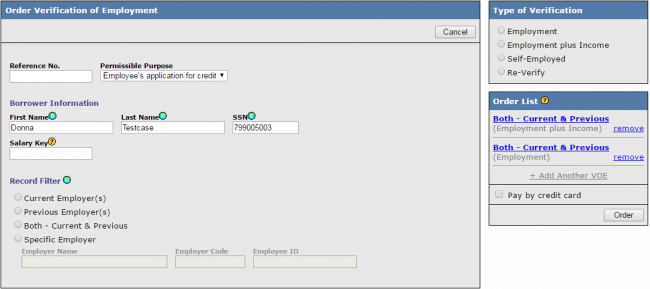
- Complete the order for the first VOE. This is the exact same process as ordering a single VOE but instead of hitting "Order"...
- Click + Add Another VOE above the Pay by credit card checkbox. This link will only be clickable when all required fields and the Type of Verification box are filled out.
- Fill in the information for the other VOE's to be ordered. The process is identical to ordering the initial report but instead of hitting Order continue to hit +Add Another VOE until you have filled in every report you want to order.
- Confirm your Order List is correct. The order list will populate above the +Add Another VOE button as you add reports.
- Click on the Order button to order all of the VOE's at once. If you get any warnings, please correct them and try to order again. You may get a warning screen indicating that a VOE already exists for the consumer. Please see the Duplicate Detection section for more details.
Placing a Re-Verify Order
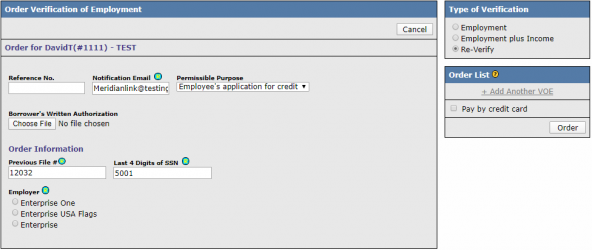
- Select the Re-Verify order option.
- Under order information, enter the Previous File # and Last 4 digits of SSN. These fields will populate the employer name from the pervious file into the employer section
- Select the Employer. Please note that the reverifying would need to be over 35 days or we will not allow a Re-Verify. Additionally, the original verification hast o be less than 60 days old or a new order will placed.
Please contact support@kcbcredit.com if you have any questions.